

Onsite MCP
On this page
Connect your AI tools
Link Claude , ChatGPT , or other supported AI clients to your Onsite account and work with building data from the tools you already use - within your user permissions and approved scopes.
Explore Onsite AI →
Demo
See Onsite MCP connected in an AI client and used against live building data.
Recipes
Once connected, try these example workflows. Click a recipe to see the details and sample prompt.

Turn an email thread into a case with history
Paste or connect an email thread, create an Onsite case for the issue, then add comments that log each step taken in the thread. Backdate comment times so the case timeline matches when things actually happened.
Set up accounts from a budget file
Upload a budget spreadsheet in Excel and ask your AI client to map lines into Onsite accounts. Review the proposed structure, then create or update accounts without re-keying the file by hand.
Generate a rich building management report
Pull live building data through Onsite MCP - cases, finances, occupancy, and more - and generate a PowerPoint management report you can share with owners, boards, or your team.
Write up open cases with photos
Find the building, list open cases, then open each case in full. That pulls description, comments, contractor or unit context, and attachment links so your write-up includes real photos - not just summary rows.
Ask a building-specific knowledge question
Ask questions about a specific building - access rules, plant details, or how something works on site - and get an answer grounded in that building’s knowledge articles and attributes, with citations.
Answer how-to product questions
When someone asks how to use Onsite (for example case types or broadcasts), search the product help and open the matching article. Use help for UI guidance - not live building lists.
Log a case update or comment
Confirm the building and case, then update fields and optionally add a comment. Only write when the user asks and their permissions allow it.
Find a resident by name or unit
Search residents by name, email, phone, or unit when you need contact details or to confirm who lives where.
Import contractors from a screenshot
Drop in a screenshot of a contractor list, extract each company, check for existing records, look up ABN/NZBN where possible, and create the missing contractors for the building with emails when available.
Requirements
- An active Onsite account
- MCP is opt-in - your organisation may control which AI tools users connect and how they are used
Server details
Onsite MCP is a remote HTTP MCP server, not a local process you run on your machine.
Endpoint
Remote MCP over HTTPS
Authentication
Connections use OAuth 2.1 through Onsite’s authorization server at https://auth.onsite.fm. When you add the server in your AI client, you will be prompted to sign in with Onsite and approve the requested scopes.
Connect in your AI client
ChatGPT
Onsite MCP can be added in ChatGPT as a custom plugin (remote MCP).
Go to the plugins page on the web:
Add a new plugin.
Enter the MCP URL
, accept the custom MCP checkbox, then create the plugin.
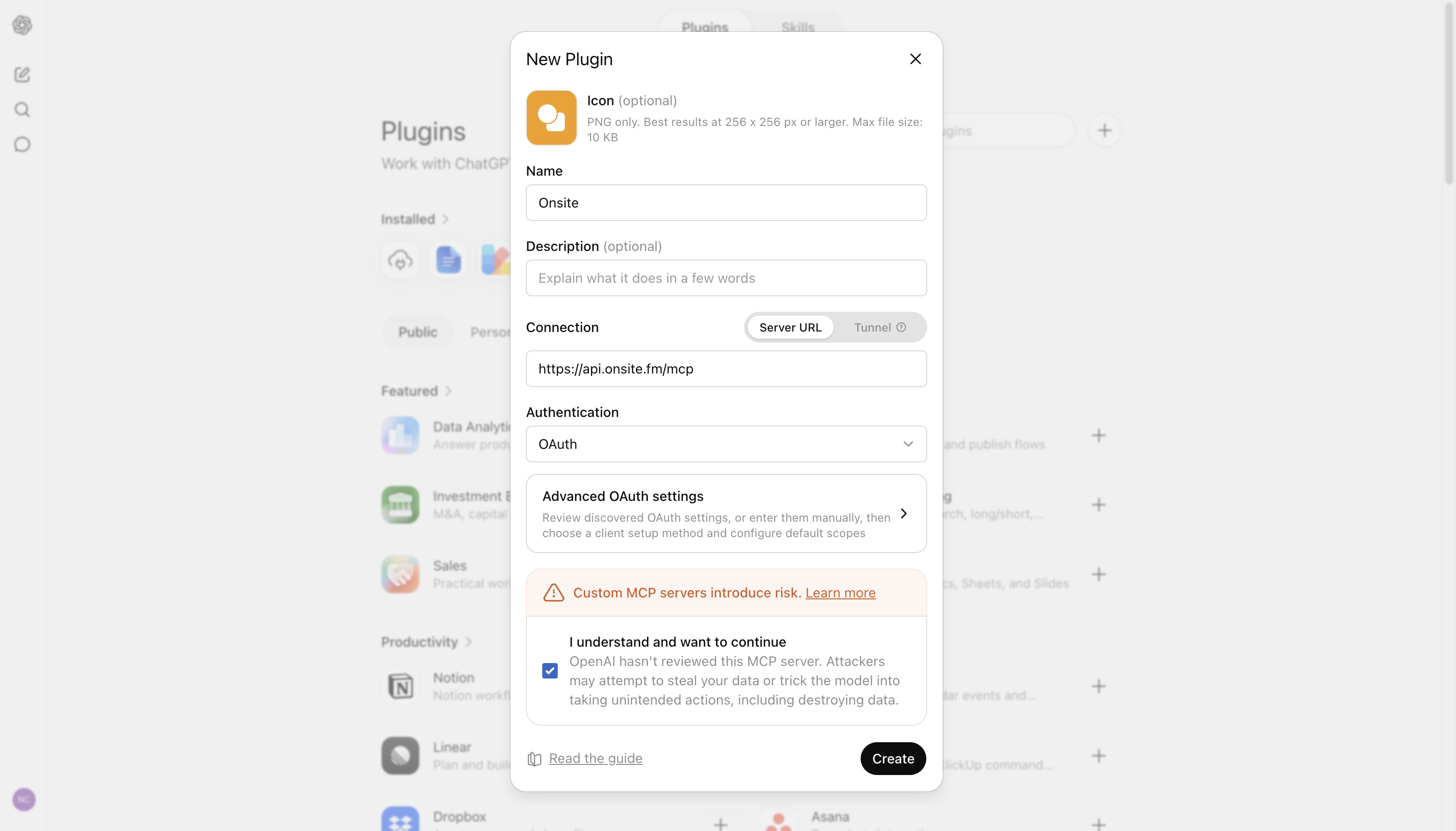
Example: New Plugin setup with Onsite name, Server URL, and OAuth selected.
Claude
Onsite MCP is listed in the Claude connectors directory. That is the quickest way to add it - open the listing, choose Connect, then complete Onsite OAuth.
Add to Claude
Opens the Onsite listing in Claude’s connectors directory. Select Connect, then sign in with Onsite and approve the requested scopes.
Or find it in Claude
Open Customize → Connectors (or use + → Connectors in chat), or browse the
Claude connectors directory.
Search for Onsite and open the listing.
Select Connect (or Request on Team plans without connector permission).
- Sign in with Onsite when prompted and approve the requested scopes.
(Optional) Whitelist
api.onsite.fmso Claude can access images returned by Onsite (for example building photos and case attachments). Add it under Claude’s allowed / trusted domains in settings.
Other
For other AI clients that support remote MCP over HTTPS:
1
Open your AI client’s MCP or integrations settings.
2
Add a remote MCP server (not a local command).
4
Complete the OAuth sign-in flow in your browser when prompted.
5
Confirm the connection is active in your client.
Using Onsite MCP
Use with care
AI clients can call MCP tools repeatedly in autonomous loops. Avoid open-ended or “keep going until done” prompts that may hammer the integration - review what your client is doing, and stop runs that are calling tools in tight loops without a clear goal.
Pricing
Onsite MCP is free at the moment. We may introduce fees during or after beta - we will give you notice before any charges apply.
We want your feedback
This is an early integration and we are actively improving it. You can share feedback through the MCP itself - ask your AI client to submit product feedback to Onsite when something works well or does not.
Disconnect or revoke access
You can disconnect at any time by removing or disabling the Onsite MCP server in your AI client’s settings. To revoke access on the Onsite side, contact Onsite support - in-app revoke is underway.
Support
If you have trouble connecting, contact support@onsite.fm.