

Sending a Push Notification
1 min read Updated
Sending a Push Notification
Only residents with the mobile app and a portal account can receive push broadcasts.
To send a push notification-type broadcast to residents using Onsite, follow these steps:
CREATING THE NOTIFICATION
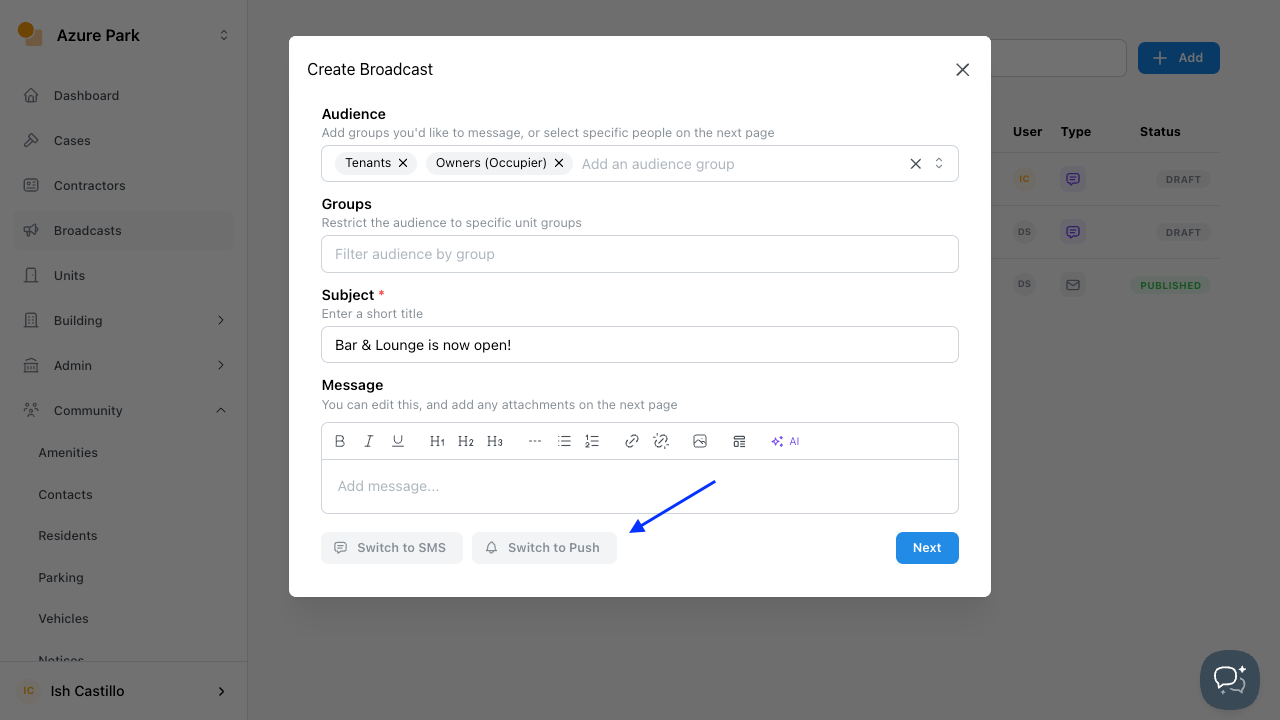
- Navigate to the Broadcast section in the sidebar.
- Click Add to create a new broadcast.
- Under Audience, configure where the message will be sent.
- Enter a short title in the Subject field.
- Select Switch to Push at the bottom of the dialog box.
- Click Next.
SENDING THE NOTIFICATION
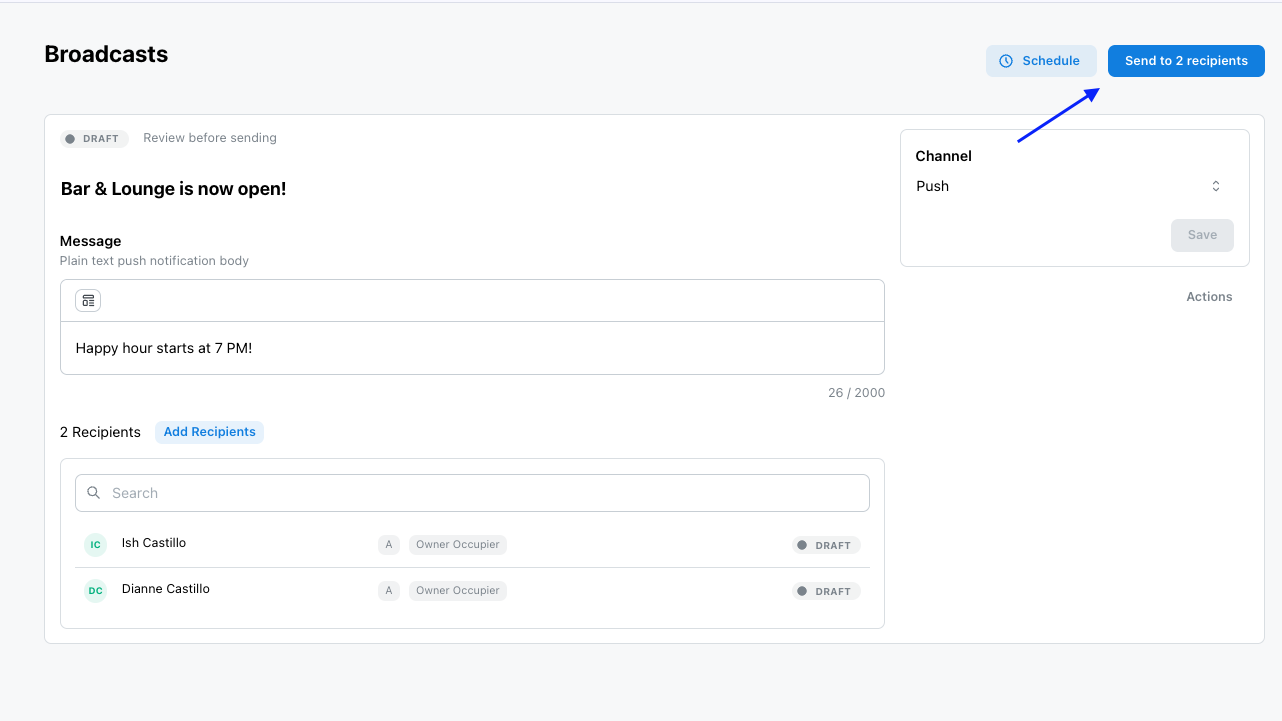
- Add the Message to be sent through push notification.
- Add or remove recipients as needed.
- If updates were added, click Save.
- Click Send to Recipient/s.
IMPORTANT NOTE:
ENSURE RECEIVING NOTIFICATIONS IN THE RESIDENT MOBILE APP IS ON
- Open the Resident mobile app.
- Click your Profile Icon at the top left
- Select Notifications and allow receiving notifications through the app
- Click Tap to sync this device.
Click the Notifications icon 🔔 at the top right corner of the mobile app to view the push broadcast.
Was this article helpful?
Thanks for letting us know.
Thanks, we'll use this to improve the article. Still stuck? Email support@onsite.fm and we'll help.