

Linking an Asset to a Unit
1 min read Updated
Linking an Asset to a Unit
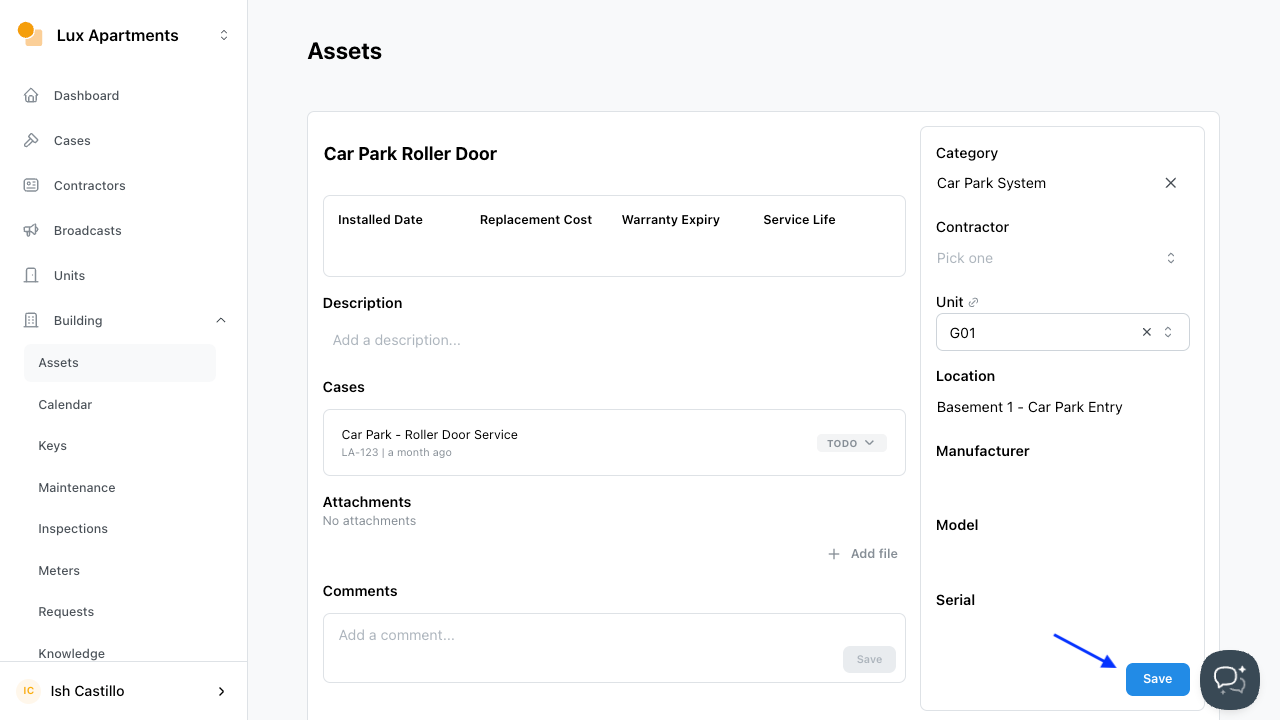
You can link an asset to a specific unit so the asset is tied to that unit’s records. Set the link from the asset’s record, and it will also show on the unit and can be updated from either side.
Steps to Link an Asset to a Unit
- Navigate to Building
- Select Assets
- Click to open the asset you want to link
- Use the Unit lookup and select the unit
- Click Save
Viewing the Link on the Unit
Once an asset is linked, the unit’s detail page shows an Asset summary listing its linked assets, each with a link back to the asset’s record. You can add or change the linked unit from either the asset or the unit.
Setting the Unit During Import
You can also set the unit when importing assets by adding a Unit column to your import file.
The unit must already exist in Onsite before you import. If a unit in the Unit column can’t be matched, that row will fail.
Was this article helpful?
Thanks for letting us know.
Thanks, we'll use this to improve the article. Still stuck? Email support@onsite.fm and we'll help.