

Importing Residents (People)
To import assets into Onsite, you can use our Import tool.
Before you begin: Make sure your data is formatted and ready for import - an import template is available to download in the import section in Onsite.
Residents can only be imported into units that already exist in the system, as each resident needs a unit to be assigned to. So before importing residents, make sure your units are in place in one of two ways:
- Import your units using the upload tool, or
- Confirm the units already exist in the system.
Once your units are set up and your data is formatted, you can proceed with importing residents.
- From the left menu bar, navigate to
Settings - Select
Import - Choose
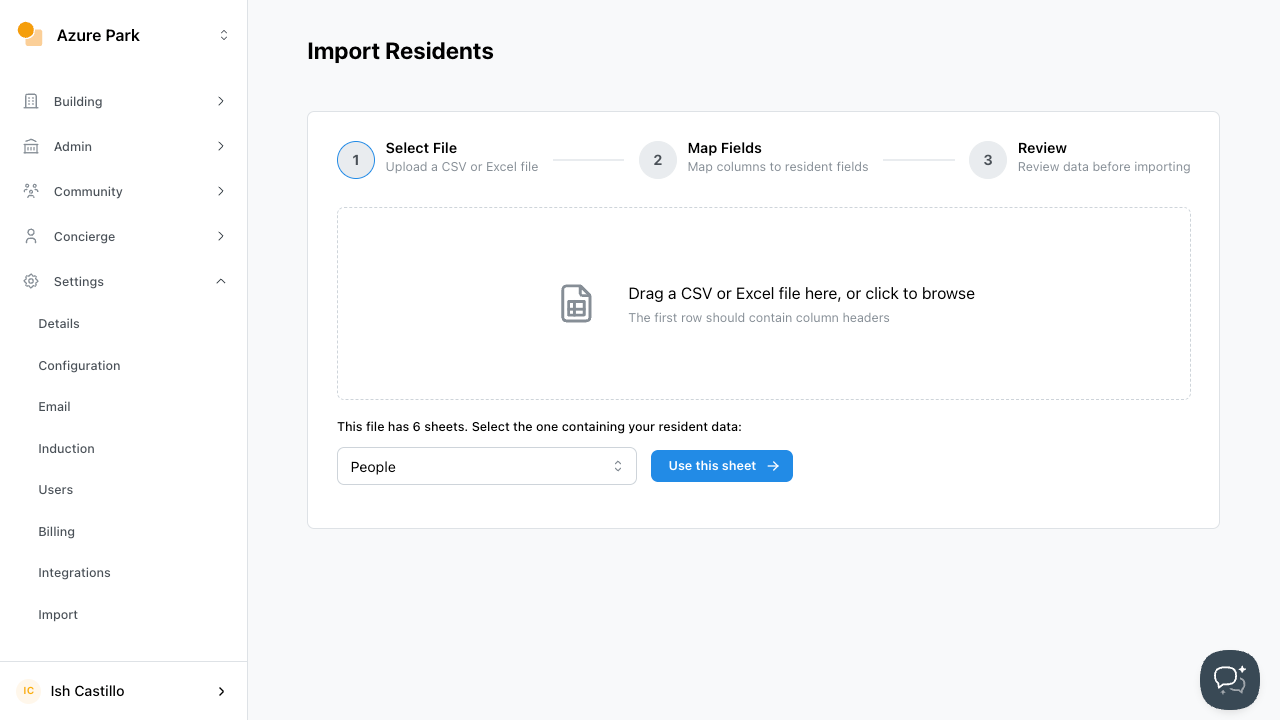
Residents Import - Upload your contractor CSV or Excel spreadsheet
- If your spreadsheet contains multiple tabs, select and verify the sheet containing your resident/people data.
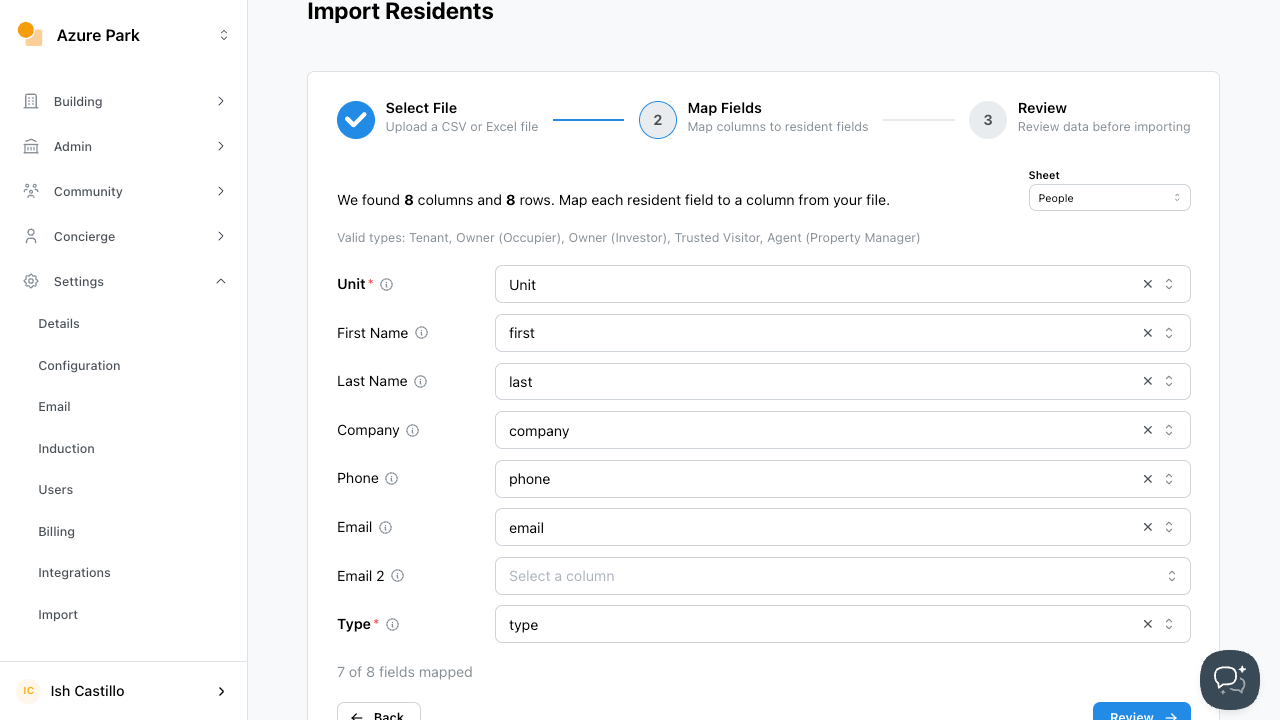
- Verify the column mapping and ensure your fields match Onsite’s mapped fields. Once you’re confident the fields are matched correctly, click
Review
Note: Not all fields need to be matched.
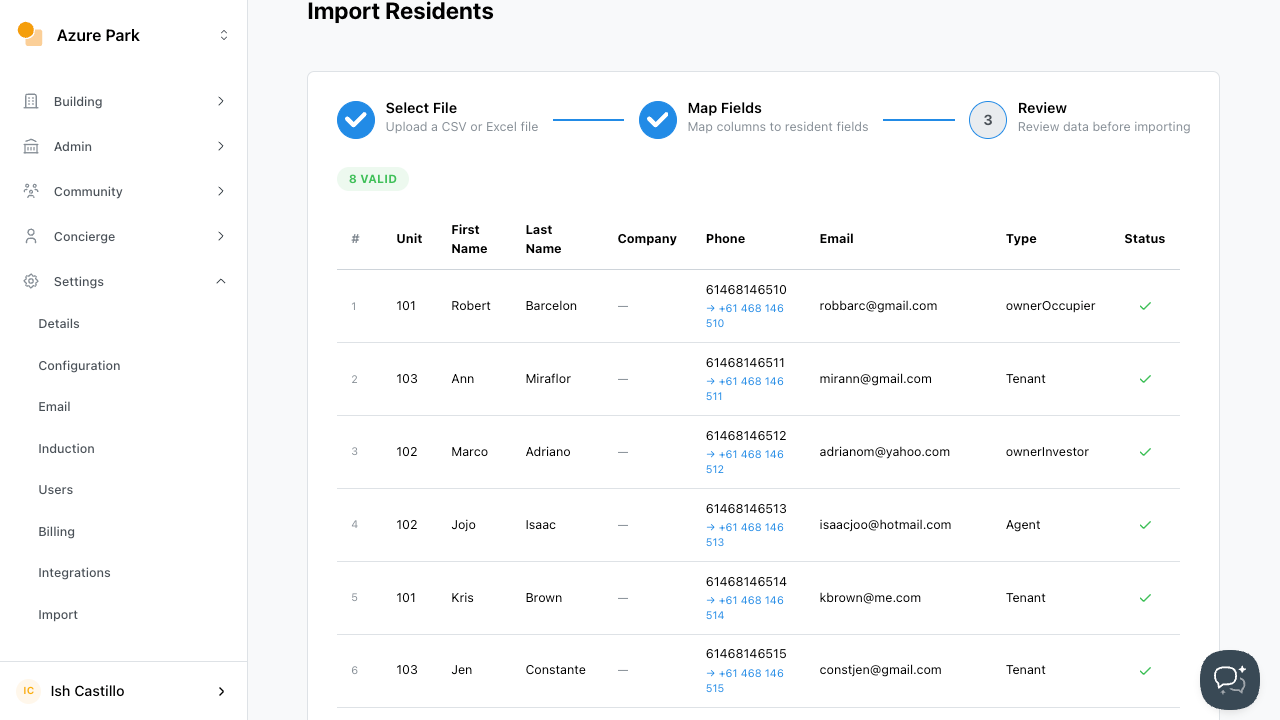
- On review, the import tool will verify the data before proceeding. Check that the data is correct and that there are no errors. If no errors are present, click
Import Residents
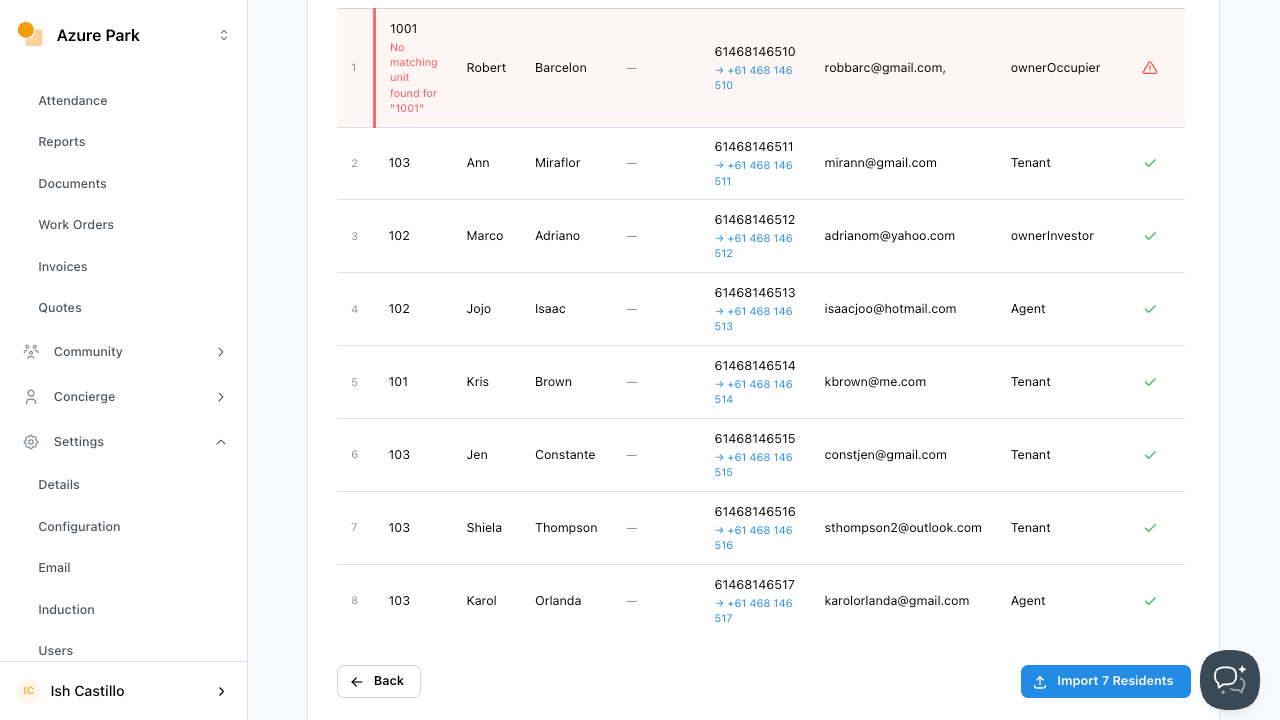
Note: If issues are present, identify them and either fix the data in the spreadsheet and restart the import process, or
Continue to import noting which residents are affected. The affected residents will not be imported, and you can then add the erroneous details in the Unit after the import is completed.
After carefully following the steps, an import successful notification will appear.
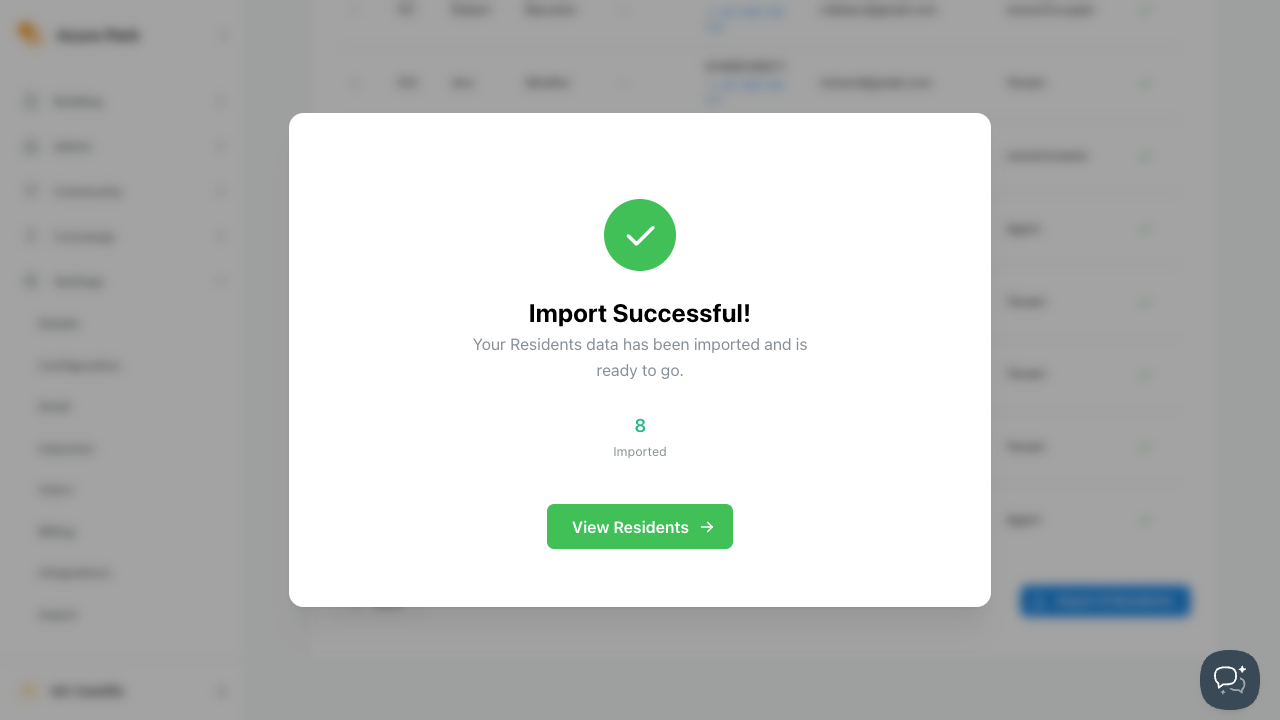
You have successfully imported your assets to Onsite!